
Data Backup & Recovery
Protect what the organization runs on. Restore it when something breaks.
A drive in a drawer is not a plan. Neither is hoping Microsoft or Google kept the version you need. We design and run four solution lines: System Recovery for servers, Device Backup for laptops and desktops, Cloud Office Backup for Microsoft 365 and Google Workspace, and a Recovery Console so jobs are visible.
If the only copy sits on the same machine that just failed, you do not have a backup.

I can sleep when the wind blows
The work is done while the sky is clear. That work is the plan.
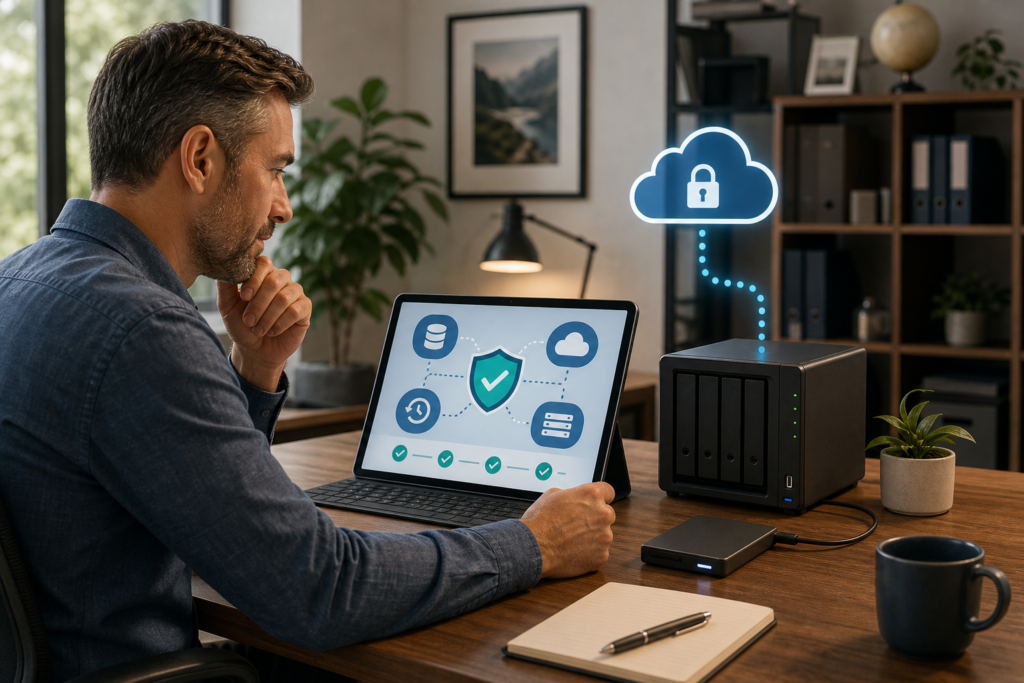
A 2025 survey of SMB leaders put ransomware first (48%), then data breaches (42%) and employee negligence (39%). Inadequate backup and recovery was named by only 21% as the fear.
Many owners assume the insurance policy restores the business. Policies do not replace a customer list, a decade of job history, or trust. It should be part of the Business Continuity plan but not THE entire plan.
MBEnterprises Consulting can help you develop what your business needs to protect the business. The goal is to protect the investment that has been the owner’s life work.
THE SOLUTIONS
System Recovery
Restore a file — or boot the whole server — on site or in the cloud
When a host dies, ransomware encrypts a volume, or the office is dark, you need the machine back, not a zip of last month’s files. System Recovery takes a full image of Windows servers and workstations and, where the estate needs it, VMware, Hyper-V, and Linux. Copies land locally when we place an on-site recovery appliance. A replica always leaves the building. You can restore a folder, rebuild the box, or run the system in the cloud while hardware is replaced.
What You Get:
- Protected systems
- A first confirmed offsite replica
- And a written fail-over path for each critical box
Device Backup
Restore a file — or boot the whole server — on site or in the cloud
Most loss is not a data center event. It is a stolen laptop, a failed SSD, or a folder someone accidentally emptied. Device Backup puts an agent on Windows, Mac, Linux endpoints and sends copies to the same off-network store as the servers. You can cover a few key computers or every machine in the organization. Staff keep working. Restore is a file, a folder, or — if the device itself is gone — a rebuild onto a replacement machine. And in the interim, work virtually. A Windows laptop or desktop can also be brought back in the cloud, if it was backed up with these recovery options in mind. That choice is made per device. It is not switched on by the agent alone.
What You Get:
- Protected devices,
- A retention rule,
- A note of which Windows devices have recovery options selected,
- A first successful file restore.
Book Your Resilience Conversation
Secure your business’s continuity. Get that good nights sleep.


Already have a backup solution but the company is not sure if everything is covered that needs to be covered. Talk to us about our Backup Readiness Review.
Cloud Office Backup

A separate copy of mail, files, and sites — after their recycle bin clock has run out.
Microsoft and Google keep the service up. They do not keep every deleted mailbox or library for as long as a board or an auditor will ask. Cloud Office Backup copies Microsoft 365 and Google Workspace out of the tenant and stores that copy off the tenant. For Microsoft 365, you can search, restore one item, restore a mailbox, put it back in the same account, send it to another account, or export a package for counsel. For Google Workspace, the protected mail, Drive, calendars, and contacts are copied on a schedule and can be restored back to the original account.
What It Covers:
Microsoft 365: Exchange Online (mail, calendar, contacts, and tasks), OneDrive, SharePoint sites and libraries, and Teams in the protected scope. Microsoft 365 restore: item-level search, restore to the original account or another account, and an export when counsel needs a package. Google Workspace: Gmail, My Drive, Shared Drives, Calendar, and Contacts, copied outside the tenant and restored to the original account. New Microsoft 365 users picked up as they are added. The same management console as the servers and laptops.
What It Is NOT
Not Microsoft’s own backup add-on, and not Google’s native recycle bin. Those stay inside the vendor. Not the same restore experience on both suites. Item-level search, restore to a different user, and an export package are Microsoft 365 capabilities on this page. Does not cover Google Chat, Meet, Groups, Classroom, or Vault. Not Entra or Google identity recovery. Not a records-retention program. Not a backup of the CRM or any other line-of-business SaaS.
Recovery Console
One place to see whether last night’s jobs ran — and to restore without a scavenger hunt
Four results lines after completion only works if someone can see them. The Recovery Console is the shared view for System Recovery, Device Backup, and Cloud Office Backup: job status, restore, and the record a board can be shown. Your team can manage the soluation from here. MBE keeps the rights to configure, manage, and restore as well, so you are not locked out of help and we are not locked out of the job
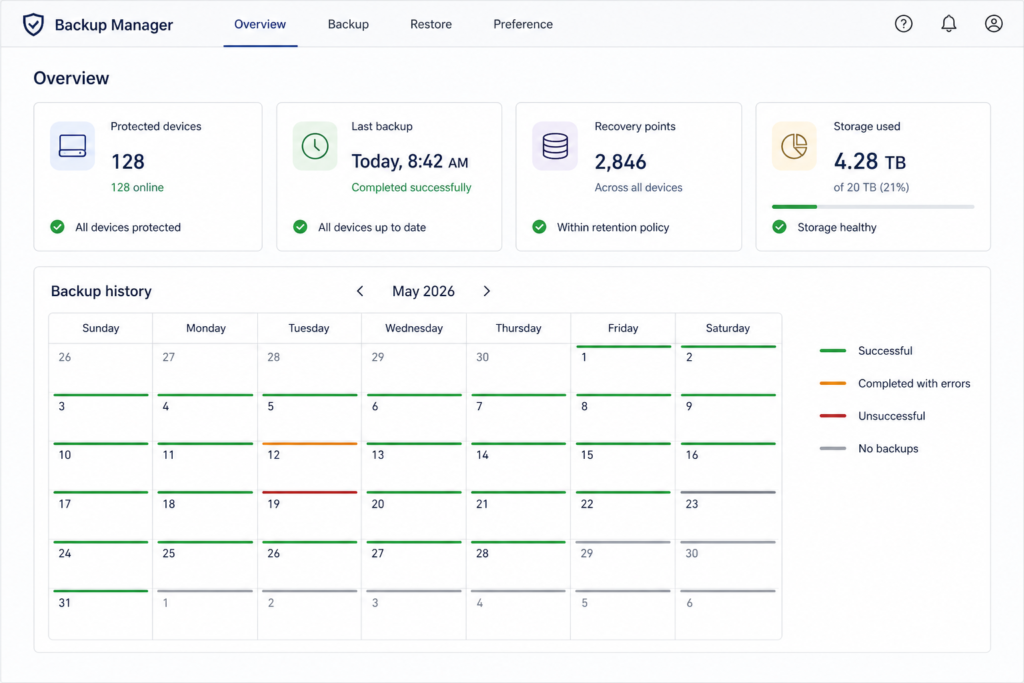
What It Covers:
Status of protected servers, devices, and cloud-office workloads. Configure protection, start a file restore, a mailbox restore, or a system recovery from named logins — not a shared password. Alerts when a job fails or completes with errors, and when a protected system is changed or removed. A named owner and a deputy on the client side, plus MBE access that is not removed when the client self-manages. A coverage map: what is in the job, which devices have recovery options selected, what is not covered, and where the copy is stored.
How these four solutions work together
Companies may need one, two or three solution. Our process will (1) evaluate the needs then (2) recommend the solutions. (3) Deploy the agents for the organization. (4) Validate it’s effectiveness. And (5) routinely review and manage the process.
If the organization has a file or app server, or a VM host
Then the System Recovery feature is highly desirable. Once the device backups occur, periodic review will help ease the worry. MBE reviews them all as well.
That flash drive holding a copy of your files makes you think you’ve got it covered.
IF laptops are the office….
Then Device Backup will be the featured choice.
If the office data is in the Cloud the company will use the Cloud Office Backup. It offers real data backup not just an archive feature.

But there is still a lot not covered!
IF the office uses only Cloud storage such as Microsoft 365 or Google Workspace…
Then the company might consider a device backup with imaging.
The Recovery Dashboard will help you keep track of the process. But the notification messages will help you rest because the plan is working.
FAQ
The first question you might have is: Is my data protected?
Data backup protection encrypts data on the device before it is sent anywhere. Backups use FIPS-140-3 encryption, travel over encrypted connections to the private cloud, and stay encrypted while stored. Data is decrypted only during an authorized restore at the recovery site.
Access to those copies requires the device encryption key or a managed passphrase. Without the credential, backup data cannot be read—even if storage is reached.
Using FIPS 140-3 cryptographic modules, with mutual TLS authentication to its data centers, is the latest encryption security. FIPS mode depends on a current Backup Manager version. For devices running a legacy platform, FIPA mode will not be activated and the standard encryption is active.
A few questions you might have.
Have more questions? Reach out to us get in touch.